> ## Documentation Index
> Fetch the complete documentation index at: https://docs.concretehq.com/llms.txt
> Use this file to discover all available pages before exploring further.
# Bulk Import Companies
> Import multiple portfolio companies at once using a CSV file
## Overview
Save time by importing multiple companies into your fund at once using Concrete's bulk import feature. Upload a CSV file with your company list and Concrete will handle the rest, including duplicate detection and data validation.
Advanced users may use Concrete's API to continuously sync portfolio companies from another system.
***
* **Required columns**: Your CSV should include company names and domains where available.
Include historical domains in a separate column that maps to Concrete's **additional domains** field. This is common for companies that rebranded or changed domains. It helps Concrete identify all relevant history.
From your fund page, click the import icon in the top right corner to begin the bulk import process.
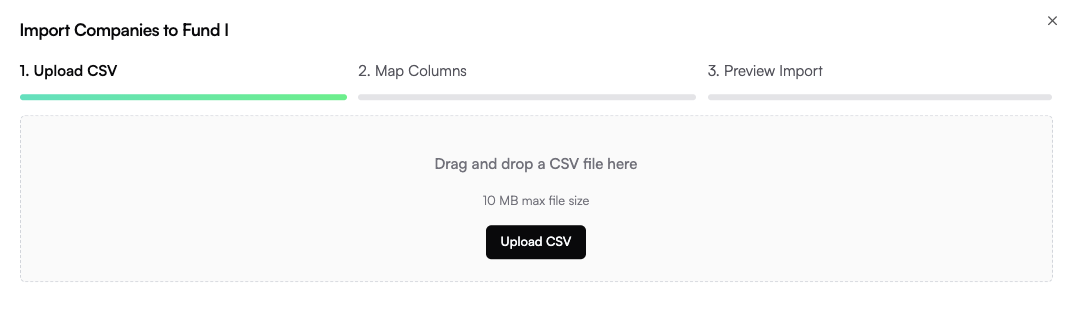 Select your CSV file containing the list of companies and their websites. The file should include at minimum:
* **Company names**
* **Domain/website URLs**
Map the columns in your CSV file to Concrete's company fields. Name and domain are required fields that must be mapped for a successful import.
Select your CSV file containing the list of companies and their websites. The file should include at minimum:
* **Company names**
* **Domain/website URLs**
Map the columns in your CSV file to Concrete's company fields. Name and domain are required fields that must be mapped for a successful import.
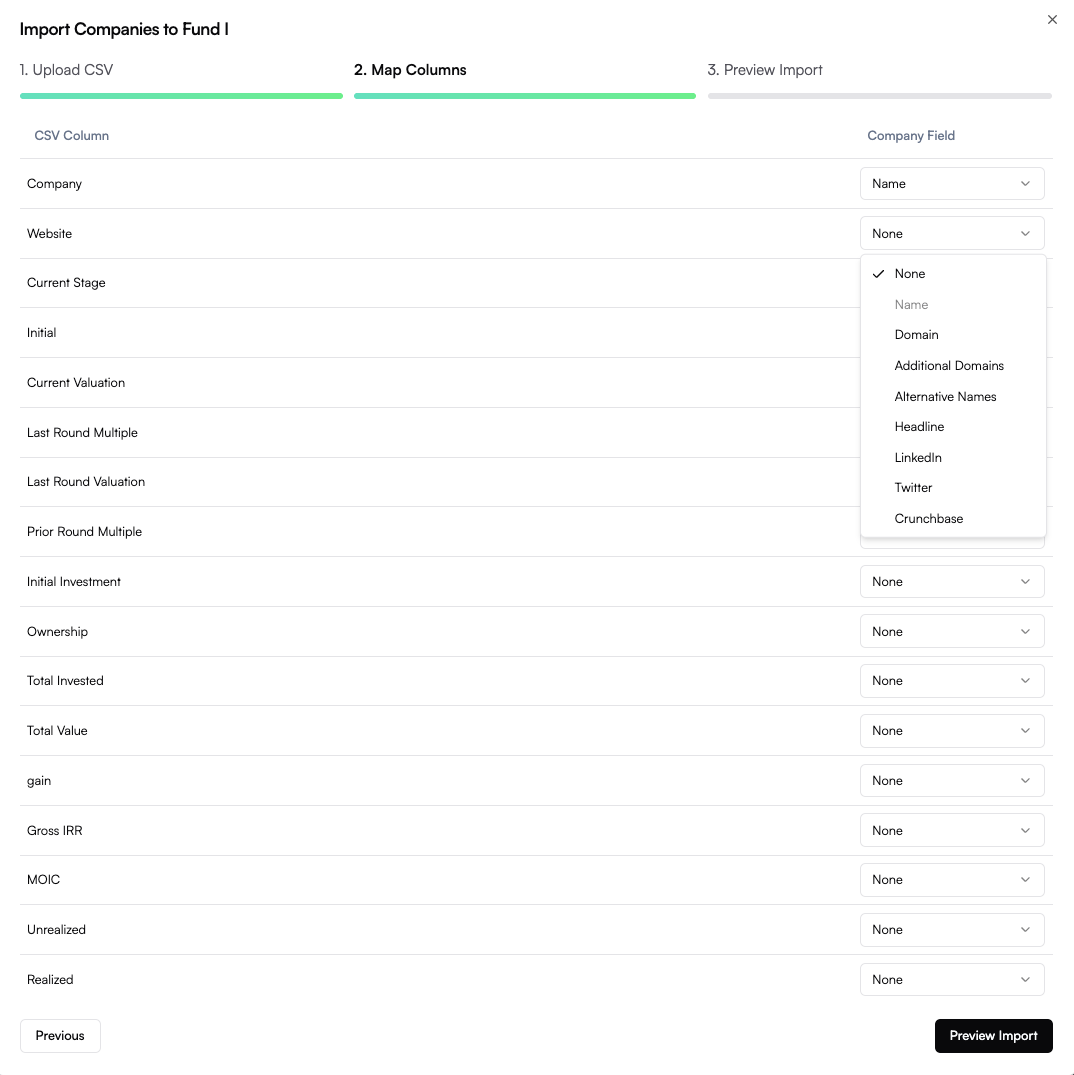 **Required Fields:**
* **Name**: Company name (maps to your "Company" or "Name" column)
* **Domain**: Company website domain (maps to your "Website", "Domain", or "URL" column)
Review your import list, which automatically accounts for duplicates and validates the data. Make any final adjustments before submitting.
**Required Fields:**
* **Name**: Company name (maps to your "Company" or "Name" column)
* **Domain**: Company website domain (maps to your "Website", "Domain", or "URL" column)
Review your import list, which automatically accounts for duplicates and validates the data. Make any final adjustments before submitting.
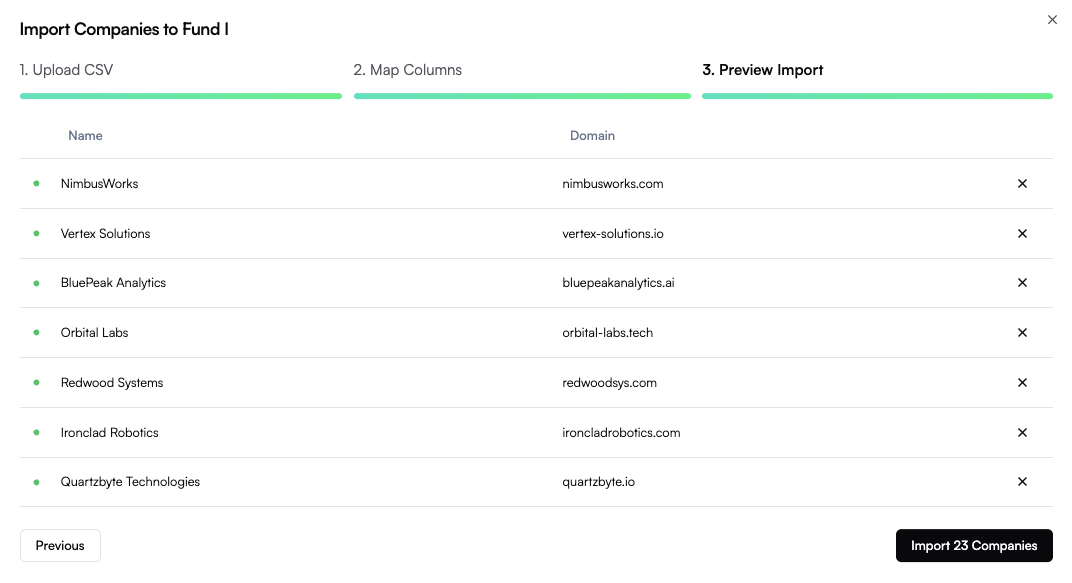 Click **Import** once you're satisfied with the preview.
***
## Troubleshooting
* If you're having trouble with the import, do not hesitate to [contact us](mailto:support@concretehq.com). We're happy to import the list on your behalf.
***
## After Import
Once your import is complete:
1. **Review imported companies** on your fund page
2. **Update company details** as needed
3. **Start tracking communications** - Concrete will begin processing relevant emails immediately
Your newly imported companies will start appearing in touchpoints and communications as Concrete processes your email history.
Click **Import** once you're satisfied with the preview.
***
## Troubleshooting
* If you're having trouble with the import, do not hesitate to [contact us](mailto:support@concretehq.com). We're happy to import the list on your behalf.
***
## After Import
Once your import is complete:
1. **Review imported companies** on your fund page
2. **Update company details** as needed
3. **Start tracking communications** - Concrete will begin processing relevant emails immediately
Your newly imported companies will start appearing in touchpoints and communications as Concrete processes your email history.